Little Alchemy Classic · 580 regular elements
Little Alchemy Hints: Find Recipes with the Elements You Have
Select the elements you have discovered. Ready now shows what you can make next; choose a target to reveal its recipe or explore a missing ingredient. This finder is for Classic, not Little Alchemy 2.
Your elements (4 selected)
Edit selected elements
Mark only what you have discovered in the game. This checklist does not change your game save.
8 new elements ready with your selection
- Ready now
- Ready now
- Ready now
- Ready now
- Ready now
- Ready now
- Ready now
- Ready now
Start with what is actually in your library
Choose the elements you have already discovered, then use Ready now to see new results whose ingredients are both in that selection. The starting four are selected on a fresh visit. Open Edit selected elements to add later discoveries, or remove a chip when you want to investigate a smaller set. You do not need to enter your whole library before the finder becomes useful: a small, accurate selection gives a small, accurate set of suggestions.
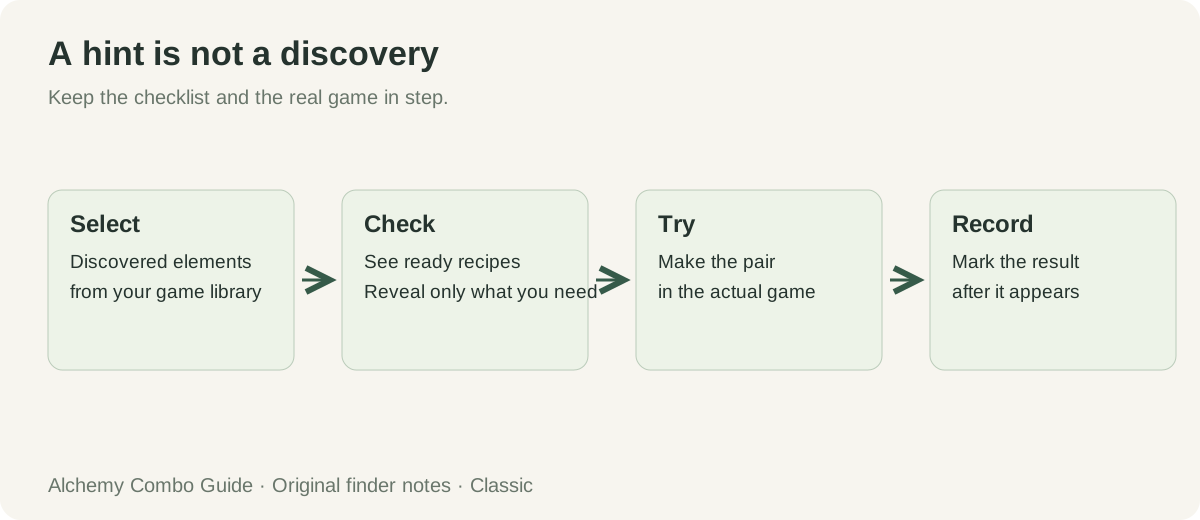
The result cards initially hide the ingredient pair. Pick an element when you want a hint about that specific discovery. Its recipe summaries tell you whether the pair is available or how many different ingredients are missing. Reveal a summary to see the actual names. This keeps the list useful when you want a direction without opening every answer at once. Browsing a card never marks the result discovered, and revealing a recipe never changes your selection.
After you make a result in the game, use Mark discovered to add it here. The ready list is then recalculated. Treat that button as a checklist update, not a game action: it cannot create an element, import progress, or check whether your last drag succeeded. Keeping those two actions separate prevents an untried suggestion from turning into an ingredient that the finder wrongly assumes you own. If you mark the wrong item, remove its chip or undo your most recent checklist change.
What changes when you change the selection?
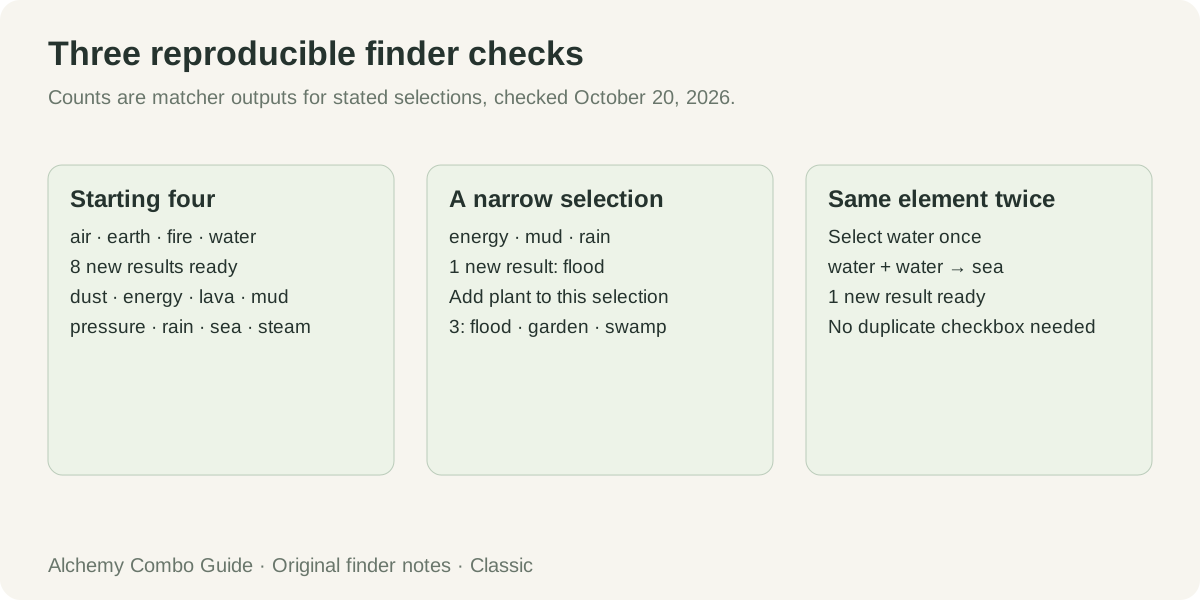
These are reproducible checks of this finder, using its Classic dataset on October 20, 2026. They describe the tool’s output, not a measurement of how quickly people finish the game.
| Selected elements | New results ready |
|---|---|
| air, earth, fire, water | 8 |
| Starting four, plus energy and mud | 9 |
| energy, mud, rain only | 1: flood |
| water only | 1: sea |
| energy, mud, rain, plant only | 3: flood, garden, swamp |
A new discovery can remove a card as well as add cards
With the starting four selected, the ready view contains eight new elements. In our second check we added energy and mud to that same selection. The new-result count became nine. That is not simply eight plus the number of new possibilities: energy and mud themselves disappear from the ready list because the checklist now says you already have them. Meanwhile, the enlarged selection enables other suggestions. The ready count is a count of undiscovered results you can make next, not a running total of every recipe you have ever unlocked.
This distinction is useful when a count drops after a successful discovery. Look at which cards changed before assuming the tool lost a recipe. A discovered result moving out of the ready view is expected. Switch to All elements if you want to look it up again. The recipe still exists there, and the card now identifies it as already selected. The finder has changed the job of that entry from a possible next discovery to a reference you may need while making something else.
A selected intermediate does not silently select its ancestors
For the third check, we cleared the list and selected only energy, mud, and rain. The sole new ready result was flood. The finder did not quietly add air, earth, fire, or water, even though those starting elements would be present in a normal game. This deliberately strict behaviour makes a smaller investigation possible. It also explains why a heavily edited checklist can show fewer suggestions than your actual game library would allow.
If you have reached that state by accident, use Use starting four, then add your later discoveries again. If you made the small selection intentionally, leave it as it is. The tool answers the question posed by the current checklist; it does not try to reconstruct how you must have reached it. A dependency explanation and an inventory record are different things. Finding a route to an item does not prove that every ingredient on that route belongs in your present selection.
The same ingredient can occupy both sides of a pair
Our water-only check returned sea. The checklist records the availability of an element type, so a pair that uses water twice does not require two water checkboxes. You can select water once and still see that suggestion. The ready filter checks whether each named ingredient is available; it does not treat the list as a stockroom with a count of consumable copies. Do not add imaginary duplicates to make a same-element recipe appear.
That also changes how to read One ingredient missing. If an unselected element appears on both sides of a recipe, there is one missing ingredient type, not two different discoveries to make. The label is about the work needed to obtain a missing type. Reveal the pair before deciding what to try, and use the missing ingredient’s own entry when you need its prerequisites. You can return to the original target with the back button rather than searching for it again.
Adding one useful prerequisite can change the next-step list
In a fourth small-set comparison, we kept energy, mud, and rain selected, then added plant. The ready view changed from one result to three: flood, garden, and swamp. This is a finder calculation from the same recipe data, not a claim that we played those three discoveries in that order. The point of the comparison is to make a checkbox change observable: you can reproduce both selections and see precisely which cards were added.
Use that approach when you want a manageable next move. Start with the elements you are considering, inspect the ready results, and add a prerequisite only after you really obtain it. There is no need to open the entire catalogue and reveal hundreds of pairs. A small checklist can be an investigation, while your normal saved checklist can represent your wider library. Undo lets you step back through recent edits if you are trying an example rather than recording permanent progress.
Need an ingredient you have not made yet?
Pick the target in All elements, then reveal one of its recipes. Each ingredient missing from your checklist has a Find button. Follow one to inspect that ingredient’s own recipes. The back button keeps the previous target in reach, so you can work on a prerequisite without losing the question that brought you there. Neither following a link nor returning to the target changes what is marked discovered.
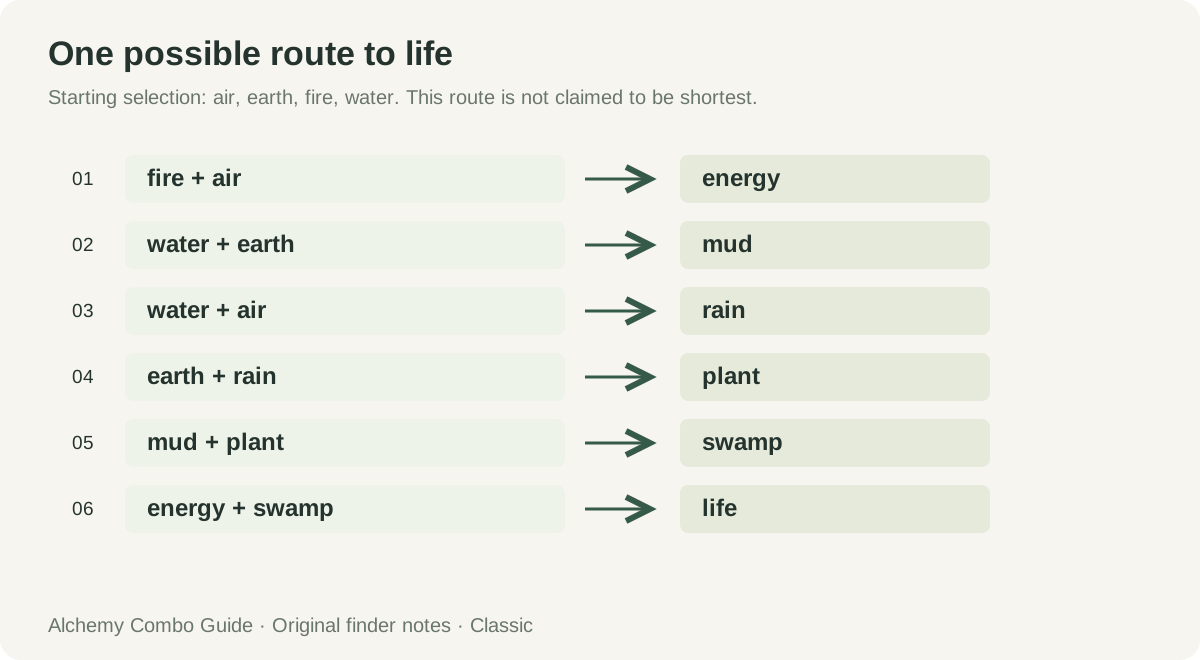
For a longer explanation, choose Show a possible route. The finder starts from your selected elements, adds results whose pairs are already available, and continues until it reaches the target or runs out of new results. It then displays only the dependency steps needed for the chosen route. It does not dump every discovery found along the way into your checklist. This is useful for planning a sequence before you carry it out in the game.
With the starting four selected, our generated route to life contains six suggested recipe steps: energy, mud, rain, plant, swamp, and life. We checked the dependency order: each step’s inputs are in the starting selection or produced by an earlier step. That is a test of the route explanation. It is not a claim that this is the only way to reach life, the best sequence for every player, or the globally shortest sequence of game actions.
Your checklist can shorten that explanation. If an intermediate is already selected, its earlier production steps do not need to appear again. If the target itself is selected, the route contains no new steps. Conversely, clearing the checklist can leave the tool with no starting point at all. In that case it reports that no complete route was found from the selection; it does not invent a missing base element or display a recipe as if its prerequisites had been supplied.
Several input pairs can lead to the same target. A pair that is ready is listed before one that still needs an ingredient. This ordering is based on the current selection, not on a rating of which recipe is more authentic or more efficient. Revealing another alternative is a way to compare what you already have. It is particularly useful after a later discovery changes which pair is immediately available, so an old route is no longer the most convenient one for your session.
Classic recipe scope and the complete name index
This page covers the 580 regular elements in Little Alchemy Classic. We read the factual element names, input pairs, and classification flags from the public files served by the official Classic game, checked on October 20, 2026. After excluding hidden gems and platform-specific extras and normalising reversed input pairs, this finder contains 973 distinct recipe entries. Starting elements are included in the name index.
Those are dataset counts, not a claim that we manually played all recipes. We checked dependency explanations for all 580 indexed targets in the tool and separately played air with fire to obtain energy, and earth with water to obtain mud, in the official browser game. The site uses its own interface and diagrams; it does not reproduce the game’s code or artwork.
Little Alchemy 2 is a separate game. Its recipes, progress unlocks, and optional content should not be applied to this Classic checklist. For the official games’ own guidance, see Classic hints or Little Alchemy 2 hints. Our existing guide discusses a different problem: recognising version, progress, and pairing issues in Little Alchemy 2.
The index below is for finding a name, not a required order of play. Open a letter, pick the target you want, and the finder will use the same checklist you have already selected. You do not need to reset your progress when moving from one target to another. A target can be worth looking up even when it does not appear in Ready now: the ready view only promises an immediately available new result, while the index is a reference for the whole regular catalogue.
A name missing from this particular index is not automatically an error in your game. Check the version and scope before treating it as an undiscovered Classic item. This catalogue deliberately keeps a defined boundary, rather than mixing every name from several lists into one total. That boundary also makes the saved checklist less ambiguous: every selectable entry refers to an item in this page’s Classic dataset, and the ready counts are calculated against that same set of entries.
Browse all 580 Classic elements A–Z
A
B
C
- cactus
- cake
- camel
- campfire
- candle
- candy cane
- cannon
- cape
- car
- caramel
- carbon dioxide
- carrot
- cart
- cashmere
- castle
- cat
- catnip
- cauldron
- caviar
- centaur
- cereal
- chain
- chainsaw
- chameleon
- charcoal
- cheese
- cheeseburger
- chicken
- chicken soup
- chicken wing
- chimney
- christmas stocking
- christmas tree
- cigarette
- city
- clay
- clock
- cloud
- coal
- coconut
- coconut milk
- coffin
- cold
- computer
- computer mouse
- confetti
- constellation
- cookbook
- cookie
- corpse
- cotton
- cow
- crayon
- crow
- crown
- crystal ball
- cuckoo
- cyborg
- cyclist
D
E
F
G
H
I
J
K
L
M
N
O
P
- paint
- palm
- paper
- paper airplane
- parachute
- parrot
- pasta
- peacock
- pegasus
- pencil
- pencil sharpener
- penguin
- penicillin
- perfume
- petroleum
- phoenix
- picnic
- pie
- pig
- pigeon
- piggy bank
- pillow
- pilot
- pinocchio
- pipe
- piranha
- pirate
- pirate ship
- pitchfork
- pizza
- planet
- plankton
- plant
- platypus
- pond
- popsicle
- pottery
- pressure
- printer
- prism
- pterodactyl
- puddle
- pumpkin
- pyramid
Q
R
S
- saddle
- safe
- safety glasses
- sailboat
- sailor
- salt
- sand
- sand castle
- sandpaper
- sandstone
- sandstorm
- sandwich
- santa
- saturn
- scalpel
- scarecrow
- scissors
- scorpion
- scythe
- sea
- seagull
- seahorse
- seal
- seaplane
- seasickness
- seaweed
- sewing machine
- shark
- sheep
- sheet music
- shuriken
- sickness
- skateboard
- skeleton
- ski goggles
- sky
- skyscraper
- sledge
- sloth
- smog
- smoke
- smoke signal
- smoothie
- snake
- snow
- snow globe
- snowball
- snowboard
- snowman
- snowmobile
- soap
- soap bubble
- soda
- solar cell
- solar system
- sound
- space
- space station
- spaceship
- spaghetti
- sphinx
- spider
- sprinkles
- squirrel
- star
- starfish
- statue
- steak
- steam
- steam engine
- steamboat
- steel
- steel wool
- stethoscope
- stone
- storm
- story
- sugar
- sun
- sundial
- sunflower
- sunglasses
- super nova
- surfer
- sushi
- swamp
- sweater
- swim goggles
- swimmer
- sword
- swordfish
T
U
V
W
X
Y
Z
Questions about using this hints finder
Can I make a checklist of what I already have?
Yes. Use Edit selected elements, search for each discovery, and tick its checkbox. Closing that panel does not clear the selection. The chips above it show the active checklist and let you remove an entry directly. This is a local record for this finder, so leave the actual game open separately and update the checklist after a successful discovery. You do not have to sign in to a game account or share a save file to use it.
Why is an element I already know absent from Ready now?
Ready now is designed to suggest new discoveries, so selected items are removed from that view. Choose All elements to search them again. The recipe information remains accessible, including alternatives you may want to use while planning a later target. This avoids filling the next-step list with results the checklist already records. It also means the ready number should not be read as a count of all usable pairs: several pairs can produce one displayed result.
Does One ingredient missing mean I can make that result immediately?
No. It means one distinct ingredient type in at least one recipe is not selected. Reveal the pair, follow the missing ingredient, and decide whether you can obtain it. A target may offer both a near-ready alternative and another pair requiring more work. The filter does not silently supply the absent item, and the interface does not mark a result discovered simply because it has shown you how to reach it.
Will this change or sync my actual game progress?
No. The finder only changes its own checklist. It does not connect to your game save, read your library, or submit moves to the official game. When you close and return to this page in the same browser, a saved checklist can still be present. A different browser or device has a different record. If you want a fresh example, use Clear selection; use Undo last change if you cleared it by mistake during the current visit.
What does the six-step life example prove?
It shows that this tool can produce an ordered dependency explanation from a stated starting set and that the displayed prerequisites are available at each step. It does not establish the fastest play time or an optimal route for every possible library. Compare its proposed steps with what you have really discovered, and change your checklist when needed. A planning tool is most useful when its starting assumptions are visible and easy to correct.
Checklist choices are stored in this browser using local storage. They are not sent to our server by this finder. Read our privacy policy for hosting and optional affiliate advertising.