Little Alchemy Classic · game controls
Little Alchemy Help: Use the Game’s Library and Workspace Controls
Drag an element from the right-hand library into the workspace. Drag it out again whenever you need another copy. To remove clutter, return a workspace copy to the library or use the recycle icon to clear the workspace. Clearing the workspace is different from resetting progress.
Checked in the official Classic web game using desktop Chrome on macOS, October 25, 2026. This is an independent controls guide, not the game. Native mobile gestures and cross-device saves were not tested.
Get another copy without rediscovering the element
- Find the element in the library on the right of the Classic game.
- Drag its icon onto an empty part of the workspace.
- For another copy, drag the same library icon to a different empty spot.
Keep the copies apart if you only want to place them. Dropping one element onto another is a combination attempt. If you need recipes rather than help moving elements, use the Classic recipe finder.
What our copy test actually changed
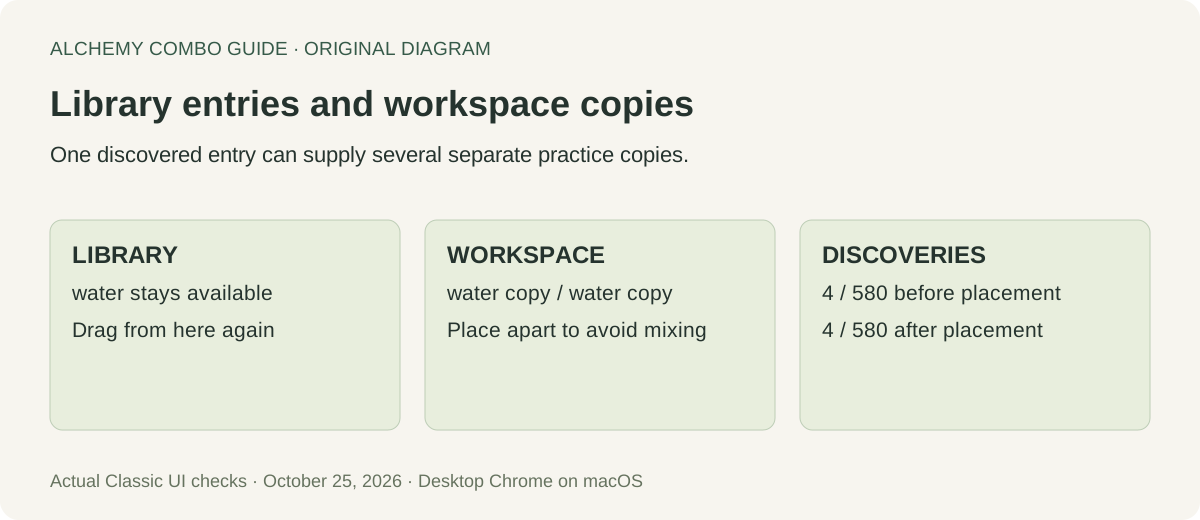
We began with an empty workspace and a library showing air, earth, fire and water. The game’s progress indicator read 4/580. We dragged water into an empty area, then dragged another water from the library to a separate spot. The workspace now contained two water copies; water was still in the library and the indicator still read 4/580. No new element had been discovered.
That gives you a practical check when an ingredient seems to have been used up: look in the library before hunting for another recipe. In this test, moving a copy did not remove the library entry. A blank area on the workspace was not a blank discovery record. Do not read the number of loose icons as your progress total; the test changed that number without changing the discovery indicator.
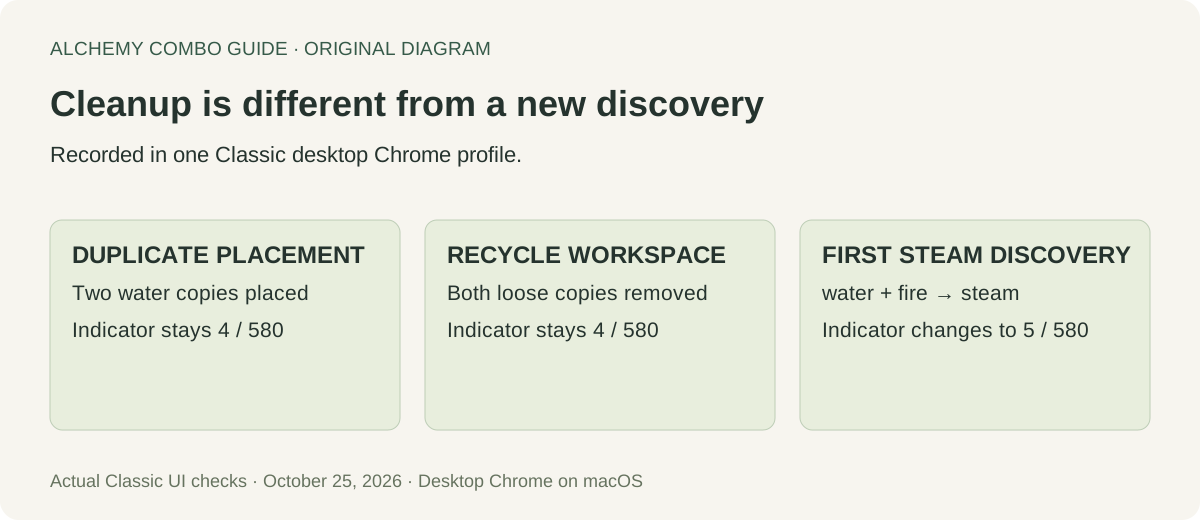
For comparison, we then placed water and dropped fire onto it. Steam appeared on the workspace and in the library, and the indicator changed to 5/580. This was a new discovery in the test profile. The difference between the two checks was visible: duplicate placement changed only the workspace, while the previously unknown output also changed the library and counter. This example explains the controls; it is not a claim about every possible pair.
Clear clutter while keeping the library
- To remove one copy, drag that workspace icon back into the library area.
- To clear the workspace, click the recycle-shaped icon near its lower-right corner, next to the library.
- Check the library and progress indicator before continuing.
The menu’s Reset progress button is a separate control. It is not the cleanup action described here. We did not press it or test recovery after a reset.
Our cleanup checks, before and after
We tested individual removal separately from clearing the whole workspace. After dragging one water into the workspace, we dragged that copy back across the library boundary. The loose copy disappeared; the water entry and 4/580 indicator remained. In the separate two-copy check, clicking the recycle icon removed both loose waters while leaving the same four library entries and the same counter. These were workspace operations, not reset tests.
| Our action | Workspace afterwards | Library / indicator |
|---|---|---|
| Drag water out twice, to separate spots | Two water copies | Water remains; 4/580 |
| Return one practice copy to the library | That copy removed | Water remains; 4/580 |
| Recycle the two practice waters | Empty | Four entries; 4/580 |
| Combine water and fire for the first time in this profile | Steam | Steam added; 5/580 |
| Recycle steam, then reload this same game tab | Empty after loading | Steam remains; 5/580 |
Our last check used the same Chrome profile and site. After clearing the steam copy, we reloaded the page. Steam was still listed and the indicator still read 5/580. That establishes persistence across this reload only. We did not test another device, private browsing, signing in, account synchronisation or recovery after clearing browser data. A successful reload check is not a backup strategy or a promise that a different profile will show the same library.
To make your own cleanup check interpretable, note an element already visible in your library and the displayed progress first. Put a spare copy in an empty area, remove that copy, then compare those same two observations. If you mix elements during the check, a new discovery can change the counter for a different reason. Keep the placement check separate from a recipe experiment so you know what caused the result.
Inspect an element instead of guessing its history
On the tested desktop interface, right-click an element to open its information panel. Close that panel with its X before returning to the workspace. The information depends on the element: our air panel showed a starting-element message, while the steam panel listed water and fire.
The official game’s loading tip also describes long-pressing an element for information. We have not verified that gesture on a physical phone or in the native apps. A mouse right-click result does not establish touchscreen behaviour.
Check the display settings before assuming progress is gone
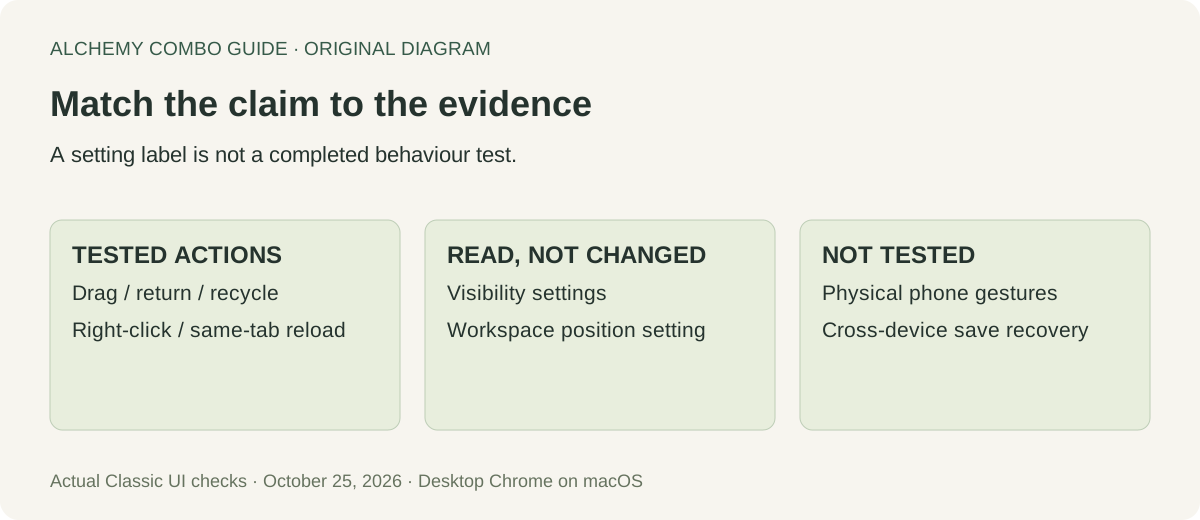
Open the three-line menu beside the workspace and choose Settings. The current web interface lists Hide final elements from the library, Hide names on the workspace and Don’t save positions on the workspace. It also lists Mark final elements and Reset progress. We read these labels without changing those settings.
If names or entries look different, inspect the relevant setting and its state before deciding what happened. The labels distinguish library visibility, workspace labels and workspace positions. We did not toggle them in this session, so this guide does not claim a tested recovery procedure or a particular default for your game.
Older guides describe Ctrl+F as library search. We did not reproduce an in-game search field with Ctrl+F in our macOS Chrome session, so it is not a required step here. That observation does not prove the shortcut fails on Windows. If a shortcut opens your browser’s Find bar, do not mistake that bar for the game’s own library filter.
Choose the next check by what changed
If a loose icon vanished but its library entry remains, our tested return-to-library procedure is the relevant comparison. If the workspace is empty and the library still lists discoveries, compare the recycle check. If a new item appears in both places and the indicator rises, compare the steam discovery. These observations let you describe the change precisely before trying another action; none requires resetting progress.
If your library differs after changing devices, stop using our same-tab reload as evidence for that situation. Write down the game version, site and browser profile you are actually using. This guide has no access to your saved game and cannot determine whether a missing item is hidden, stored elsewhere or lost. Our separate checklist, journal and route planner also do not import the game’s library. Check the game itself when establishing what you own.
Questions about the Classic controls
Does clearing the workspace remove discoveries?
In our recycle checks, the workspace emptied while the library and displayed discovery count remained. Reset progress is a different button; we did not use it.
How do I get two copies of the same ingredient?
Drag the same library entry into two separate empty places. In our water test, both copies appeared without removing water from the library or increasing the discovery count.
Will a download from this site restore my game?
No. The shared-plan CSV is a checklist and the journal JSON is a record of your reports. Neither is a Classic game-save file or a recovery tool.
Is this the same interface as Little Alchemy 2?
This page tests the original game at littlealchemy.com. Use the sequel guide for Little Alchemy 2; the observations here are not sequel-control tests.
Watch the controls explanation
Original schematics and explanation, with synthetic narration. The illustrations are not game footage.
Sources and test limits
Primary source: the current official Classic web game, tested October 25, 2026, in desktop Chrome on macOS. Our practice profile began with the four starting elements and an empty workspace. Observations were recorded from visible controls and before/after results. We did not reset progress, change game settings or clear browser storage.
The Blogger game walkthrough supplied leads about dragging and element information. Its shortcut and historical platform claims were not assumed to apply today. The procedures, comparison, diagrams and explanations above were produced independently from the recorded checks. Questions on this page are editorial, not quoted player testimony.